



Overview
WooCommerce lets your agent answer questions about products, categories, reviews and coupons, and help matched customers with their orders. Depending on the permissions you grant, it can also prepare a draft order, update an address or cancel an unpaid order.
Connected is not enabled
Connecting a store does not switch on any actions. Workspace and This agent access must both be ticked, and requests that need approval are reviewed in Operations, not on Integrations.
The journey at a glance
- 1Find WooCommerceOpen Integrations, search for WooCommerce and click Connect.
- 2Connect WooCommerceEnter the store address, consumer key and secret, then verify.
- 3Check the WooCommerce pageConfirm Connected, then check health with Test connection.
- 4Choose what it can doTick Workspace and This agent, then Save capabilities.
- 5Set up Actions and approvalsSwitch actions on and choose whether changes wait for approval.
- 6Try itAsk product and order questions in the Playground.
- 7Review pending approvalsApprove or reject waiting WooCommerce requests in Operations.
Before you start
You need a WordPress site with WooCommerce, a public HTTPS store address, and a WooCommerce REST API key (a consumer key and consumer secret).
Prepare WooCommerce in WordPress
- 1Sign in to your WordPress admin dashboard (usually yourstore.com/wp-admin).
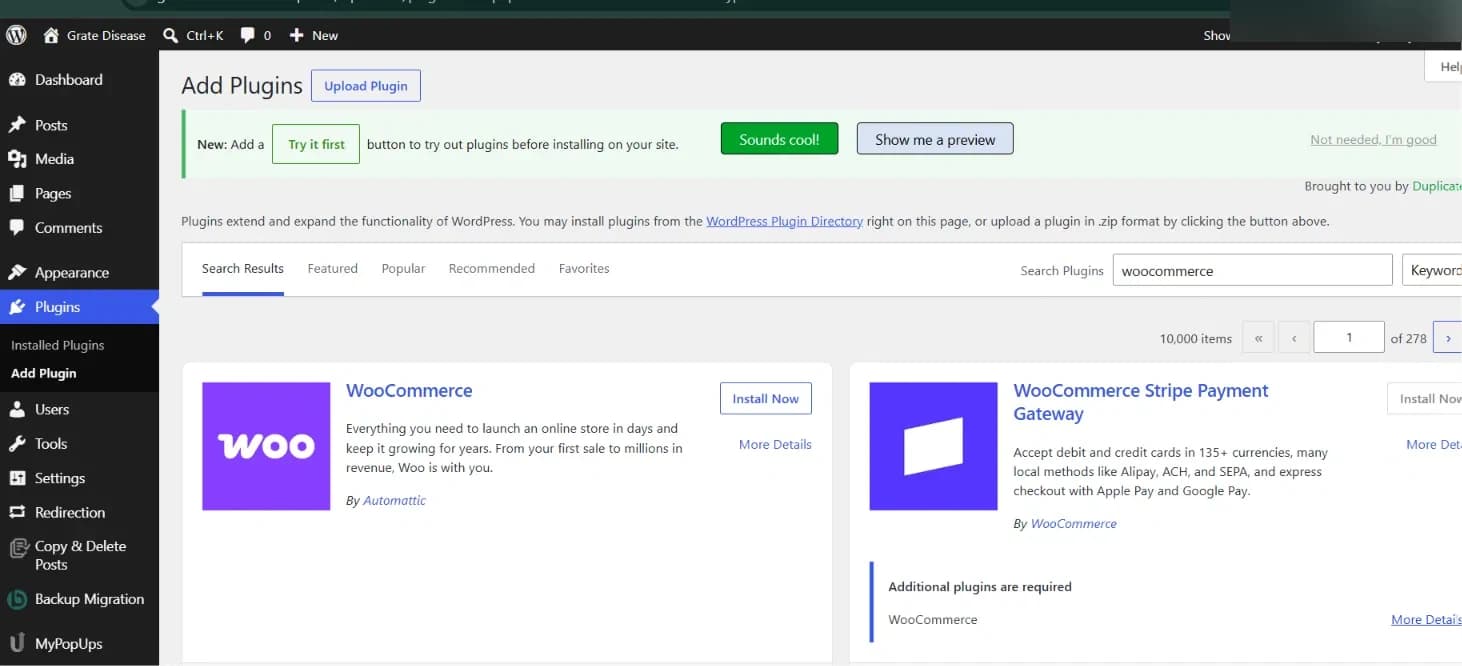
- 2Open Plugins → Add Plugin, search for “WooCommerce” by Automattic, then click Install Now and Activate. Skip this if WooCommerce is already active.
- 3Open WooCommerce → Settings → Advanced → REST API → Add key.
- 4Give the key a description you will recognise, such as “Cevanos”, choose the authorized user, and set the permissions. Read allows lookups; Read/Write is needed for actions that change store data.
- 5Click Generate API key. Copy the Consumer key and Consumer secret and keep them safe. The secret is shown only once.
Read/Write for changes
The 3 actions that change something work only with a Read/Write key. Never paste real keys into emails, chat messages or documents.
Step 1
Find WooCommerce
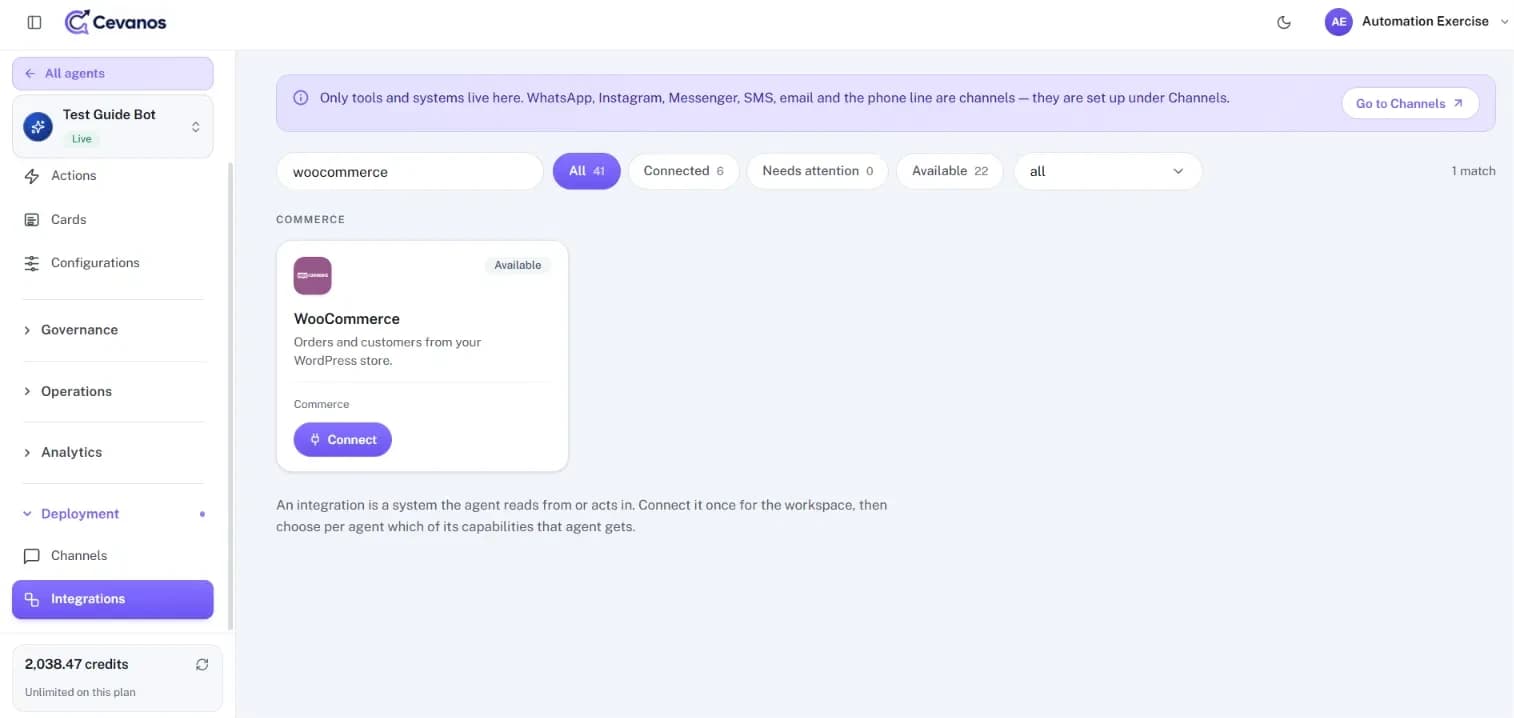
- 1In the Cevanos dashboard, open your agent and go to Deployment → Integrations.
- 2Type WooCommerce in the search box, or look under Commerce.
- 3Check the badge on the card. Available means it is not connected yet. Click Connect.
Result
The Connect WooCommerce pop-up opens.
Step 2
Connect WooCommerce
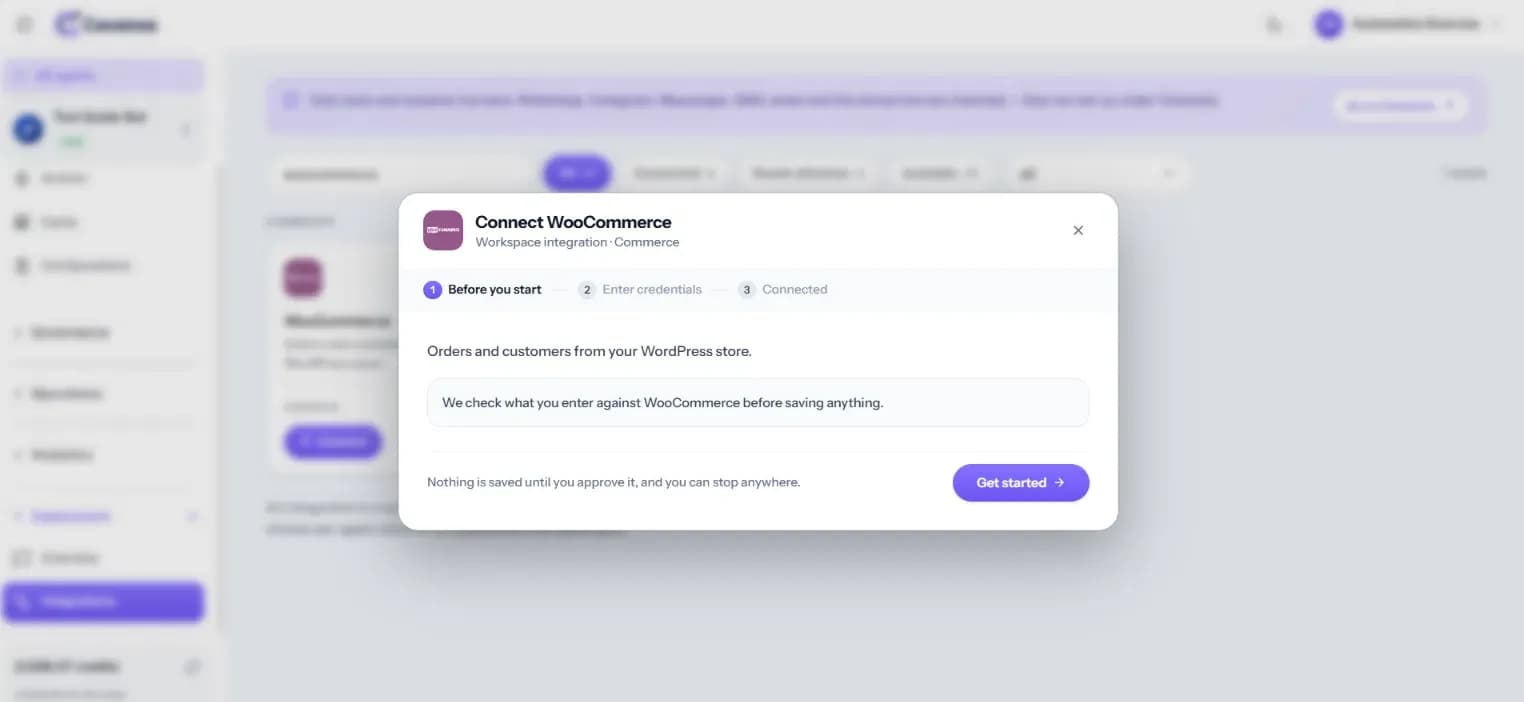
2a. Before you start
The first screen explains that Cevanos checks what you enter against WooCommerce before saving anything. Click Get started.
2b. Enter the credentials
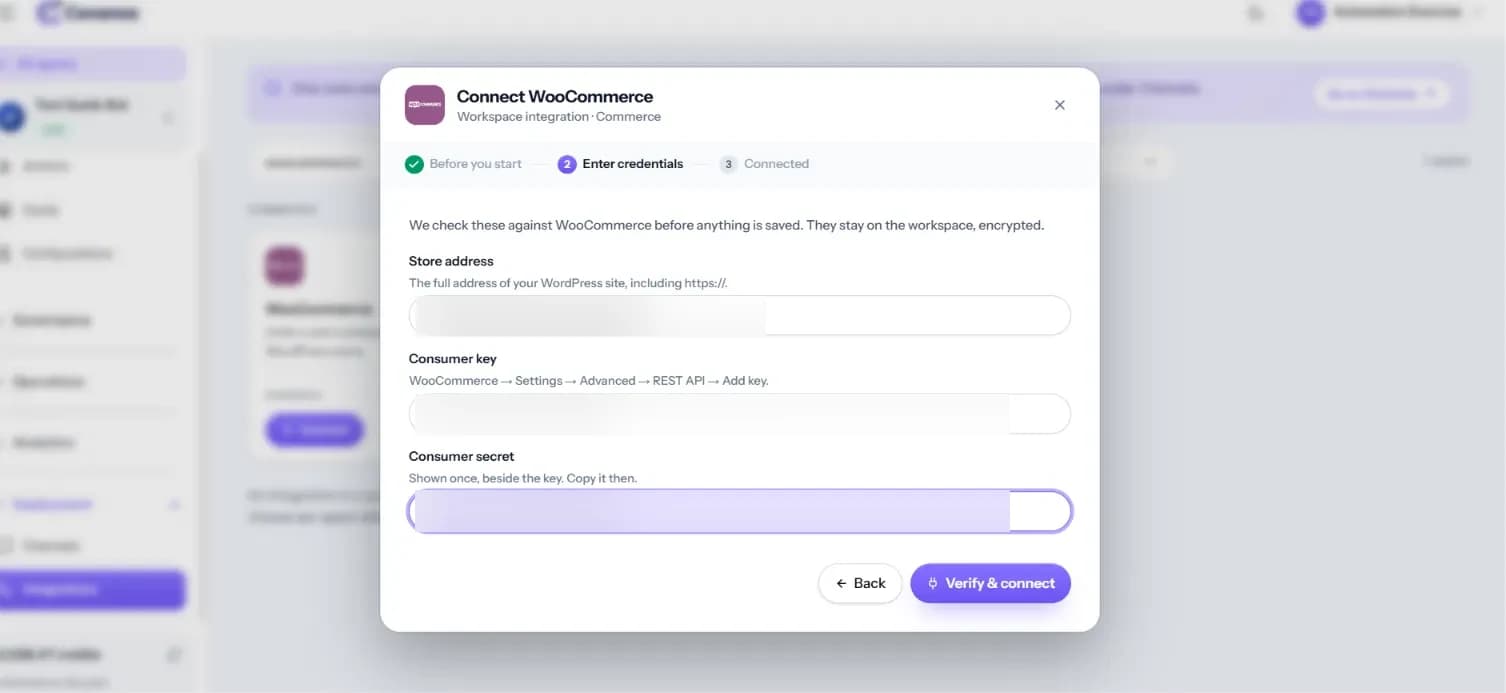
| Field | What to enter |
|---|---|
| Store address | Your store's full public address, starting with https://, such as https://yourstore.example. |
| Consumer key | The REST API consumer key you generated in WooCommerce. |
| Consumer secret | The secret generated with the consumer key. It is masked in the form. |
Click Verify & connect. Cevanos tests the access before it saves the connection.
If it fails
Check the domain, that the store works over HTTPS, the REST API key's permissions, and that the key and secret belong to the same pair.
2c. Connected
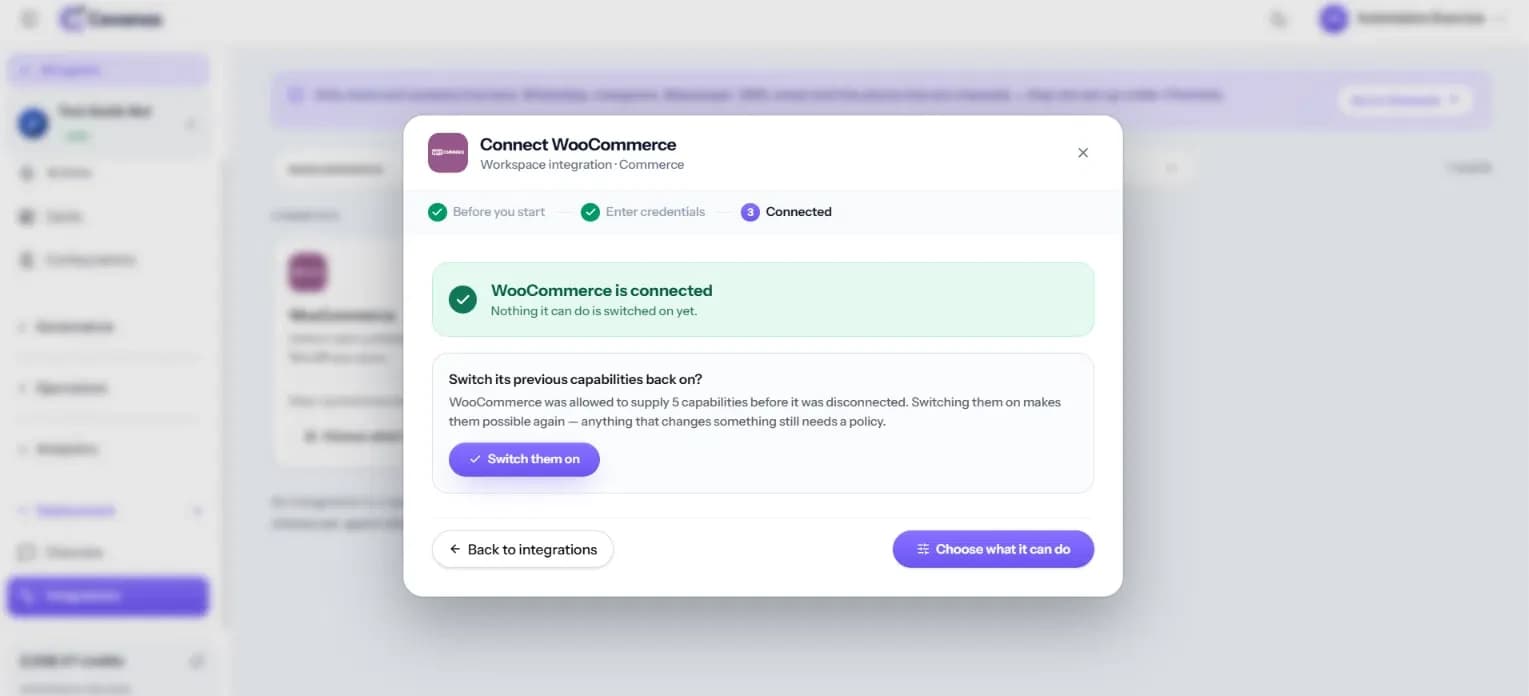
- The pop-up says “WooCommerce is connected” and that nothing it can do is switched on yet.
- If this store was connected before, you may be offered to switch its previous capabilities back on. Review them before you click Switch them on.
- Click Choose what it can do to go straight to Step 4, or Back to integrations.
Result
WooCommerce is connected for the workspace, but nothing it can do is switched on for your agent yet.
Step 3
Check the WooCommerce page
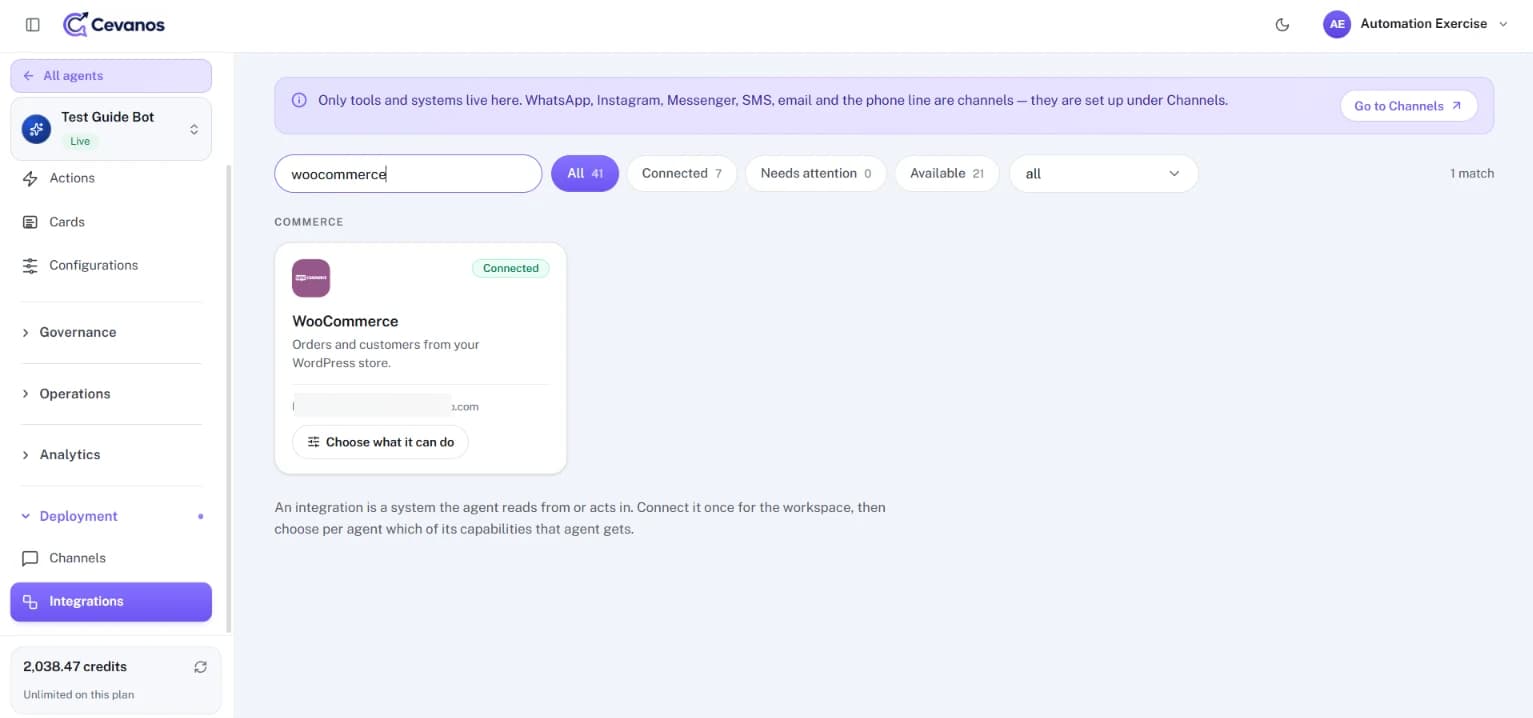
- 1Go back to Deployment → Integrations and search for WooCommerce.
- 2Check that the badge says Connected. The card shows the store address and Choose what it can do.
- 3Open the WooCommerce page to review the field mapping, connection health and Test connection.
Result
You can confirm the store is connected. This does not mean a particular agent can run every action yet.
Step 4
Choose what it can do
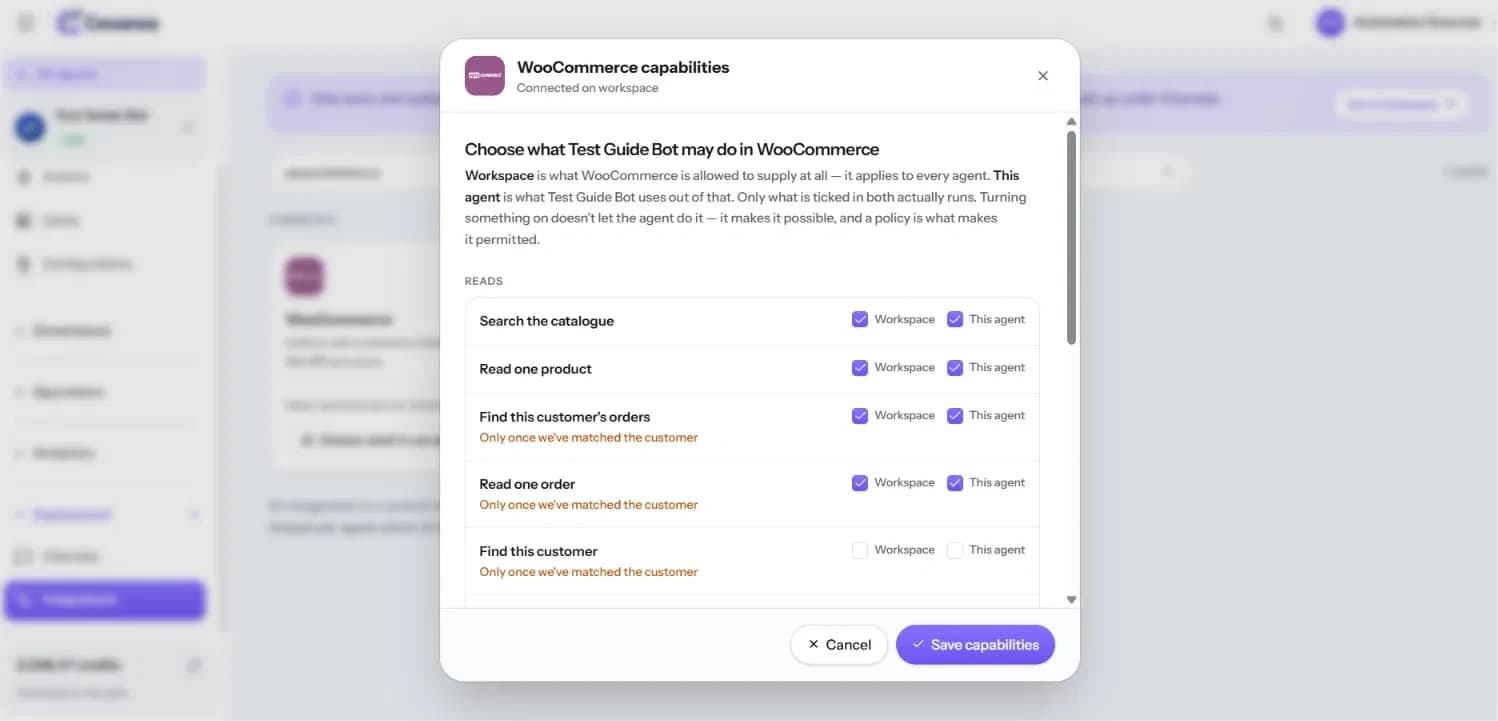
Click Choose what it can do. Each capability has two separate checkboxes:
| Setting | Meaning |
|---|---|
| Workspace | Makes the capability available in the workspace. |
| This agent | Lets the agent you are setting up use it. |
| Both ticked | The capability is on for this agent, subject to customer matching, permission checks and your policies. |
- 1Tick only the capabilities your business needs. Reads look something up; Does change something in the store.
- 2Click Save capabilities.
Customer data
Customer-specific reads need the customer to be matched first. Address changes and order cancellations also need the customer to confirm.
Result
The capabilities ticked in both columns are available to this agent.
Step 5
Set up Actions and approvals
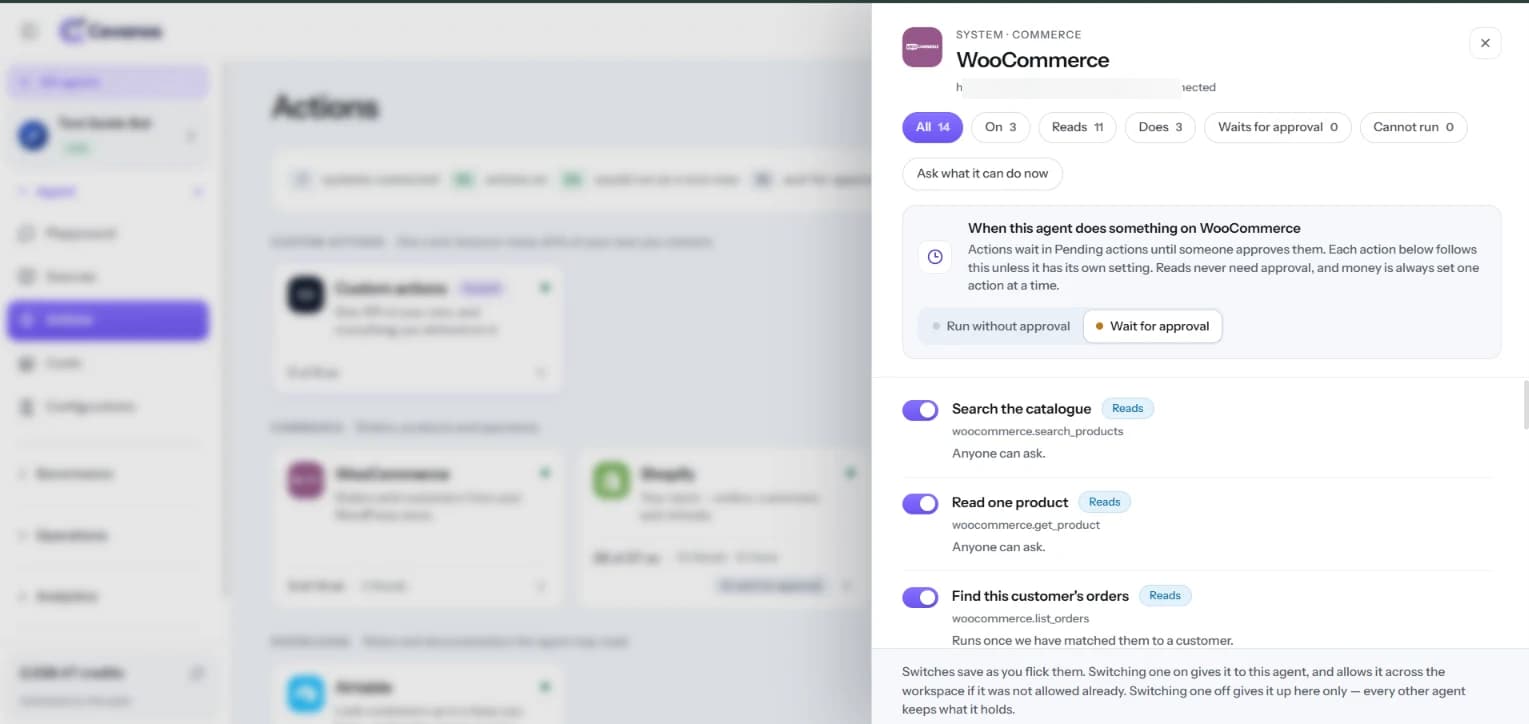
- 1In your agent's left sidebar, open Actions. Under Commerce, click WooCommerce.
- 2Use the All, On, Reads, Does, Waits for approval and Cannot run filters.
- 3Turn on only the actions this agent should use. Each switch saves as you change it.
- 4For actions that change data, choose Run without approval or Wait for approval. You can also review each action's own setting.
- 5Click Ask what it can do now to check what the agent can use right now.
Setting, not approving
Actions sets whether an action waits. Operations handles the actual request once the agent submits it. Choosing Wait for approval does not approve anything by itself.
- Reads run immediately and need no approval.
- Actions marked Matched customer run only after the customer's email or phone is matched to a customer.
- Actions marked Confirmed customer also need a verification code: the customer gets a 6-digit code by email, valid for 10 minutes and usable once. A newer code replaces an older one. Once the code is accepted, the customer may need to send one more message (for example “yes”) before the action is proposed.
- Actions that change something wait in Operations → Pending actions until a team member approves them.
- Approving in Pending actions can reload the Playground and reset its Test as email, so open Pending actions in a second browser tab while you test.
Result
You know which WooCommerce actions this agent can run and which changes wait for a person.
Step 6
Try it
Set Test as to the email address on the order. Start with read-only questions before testing actions that change something.
| Ask | What to check | Approval needed |
|---|---|---|
| “Do you have <product> in stock?” | Product availability is found. | No |
| “Is the code <code> valid?” | The discount or coupon is found. | No |
| “What's the status of order #<number>?” | The order status for the matched customer. | No |
| “Prepare a basket with 1 <product>” | A basket proposal is created. | Yes, in Pending actions |
| “I want to cancel order #<number>” | An emailed code, then the action proposal. | Yes, in Pending actions |
A realistic customer journey
| Ask | What to check |
|---|---|
| “Can you find blue shirts?” | Search the catalogue runs, if switched on. |
| “Tell me more about this product.” | Read one product runs, if switched on. |
| “Where is my order?” | The customer is matched first, then the order is found. |
| “Please update my saved address.” | The customer is asked to confirm, and any approval applies. |
| “Please cancel my unpaid order.” | The customer confirms, and permissions and approval are checked before cancelling. |
After testing a change, check whether a request is waiting in Operations → Pending actions and confirm the outcome in WooCommerce. Do not assume a change happened just because the AI said it would.
Result
Your agent answers product and order questions from WooCommerce, and changes wait for your team where you chose approval.
Step 7
Review pending approvals
When an action is set to wait for approval and a customer triggers it, Cevanos holds it for review instead of changing WooCommerce straight away.
- 1Open Operations from the Cevanos sidebar.
- 2Find Pending actions and the WooCommerce request.
- 3Review the customer context, the proposed action and its details.
- 4Approve only if the request is appropriate and permitted; reject it if the information is missing or wrong.
- 5Go back to the Playground and WooCommerce to check the result.
Result
Every WooCommerce change that waits for approval is checked by a person before it reaches your store.
Reference
What WooCommerce can do
WooCommerce supplies 14 capabilities: 11 reads and 3 that change something. What the agent can run also depends on customer matching and the REST API key's permissions.
14 capabilities · 11 reads · 3 that change something
- Anyone can ask
Search the catalogue
woocommerce.search_products - Anyone can ask
Read one product
woocommerce.get_product Browse the catalogue
woocommerce.browse_productsList product categories
woocommerce.list_categoriesProduct sizes and colours
woocommerce.list_variationsRead product reviews
woocommerce.list_reviewsCheck discount codes
woocommerce.list_coupons- Matched customer
Find this customer's orders
woocommerce.list_orders - Matched customer
Read one order
woocommerce.get_order - Matched customer
Order shipping updates
woocommerce.get_order_notes - Matched customer
Find this customer
woocommerce.find_customer
Prepare a basket
woocommerce.create_draft_order- Confirmed customer
Update saved address
woocommerce.update_address - Confirmed customer
Cancel unpaid order
woocommerce.cancel_order
Good to know
A basket is a draft order in WooCommerce. The 3 actions that change something need a Read/Write REST API key.
Troubleshooting
| Problem | What to check |
|---|---|
| Cannot connect | Check the store address uses https and the site is reachable, and that the consumer key and secret are correct and belong to the same pair. |
| Reads work but changes fail | Check that the REST API key was created with Read/Write permission. |
| The agent says an action is unavailable | Check Workspace and This agent in Choose what it can do, then look at Actions → Cannot run. |
| Customer orders are not shown | Check that the customer has been matched to the right store record. |
| An update is waiting | Review it in Operations → Pending actions. |
| Lost consumer secret | Generate a new API key in WooCommerce. The old secret cannot be shown again. |
Optional
Disconnect WooCommerce
- 1Open the WooCommerce page and find Disconnect WooCommerce.
- 2Confirm only if you want Cevanos to stop using the store.
- 3To revoke the key itself, delete the REST API key in WooCommerce → Settings → Advanced → REST API.
Your data stays
Disconnecting removes Cevanos's access without deleting your store data. It does not revoke the key at WooCommerce; delete the key there to do that.
Help from WooCommerce
Ready to connect WooCommerce?
Open your agent's Integrations and click Connect on the WooCommerce card.