



Overview
Once Zoho Desk is connected to Cevanos, your agent can work with the tickets in one Zoho Desk department:
- Look up support history: find the customer's tickets and read the correspondence on a specific ticket.
- Help manage tickets: open tickets, add customer-visible replies, and close or reopen tickets when the request is permitted.
The journey at a glance
- 1Find Zoho DeskOpen Integrations, search for Zoho and click Connect.
- 2Connect Zoho DeskEnter your data centre, organisation and department, then approve in Zoho.
- 3Check the Zoho Desk pageConfirm Connected and test the connection.
- 4Set up Actions and approvalsSwitch on the actions this agent should use and set approvals.
- 5Try itTest in the Playground with a test customer.
- 6Review pending approvalsApprove or reject requests in Governance → Approval Queue.
Before you start
You need:
- A Zoho Desk account with permission to authorize app access.
- Your Zoho Desk data centre, organisation ID, and the department your agent should work with.
- Access to that department's tickets and contacts.
| Field in Cevanos | What to enter |
|---|---|
| Data centre | The region where your Zoho account is hosted: .com, .eu, .in, .com.au or .jp. |
| Organisation | The organisation ID for your Zoho Desk portal. |
| Department | The ID of the one department this connection should use. |
Find your data centre
- 1Sign in to Zoho Desk in your browser.
- 2Check the domain in the address bar. For example, an account on desk.zoho.in uses the .in data centre; desk.zoho.eu uses .eu.
- 3Select the matching region in the Cevanos Data centre field. Do not select .com unless your account is actually hosted there.
Find your organisation ID
- 1In Zoho Desk, select the Settings / Setup gear.
- 2Open Developer Space, then API (sometimes shown as APIs).
- 3Find Org ID in the API details area and copy the number into the Organisation field in Cevanos.
Find your department ID
- 1In Zoho Desk Setup, open Departments (usually under General or Organization).
- 2Select the department your agent will support, such as Support or Billing.
- 3Look at the address bar on the department details page. Copy the numeric department ID from the end of the URL, after the departments path.
- 4Paste the ID into the Department field in Cevanos. If you have several departments, choose the one you actually want this agent to work with.
Step 1
Find Zoho Desk
- 1Open Cevanos and go to Agents.
- 2Select the agent you want to set up.
- 3Under Deployment, open Integrations.
- 4Use the search field or the category filters to find Zoho in the Helpdesk section. One Zoho card covers both Zoho Desk and Zoho CRM.
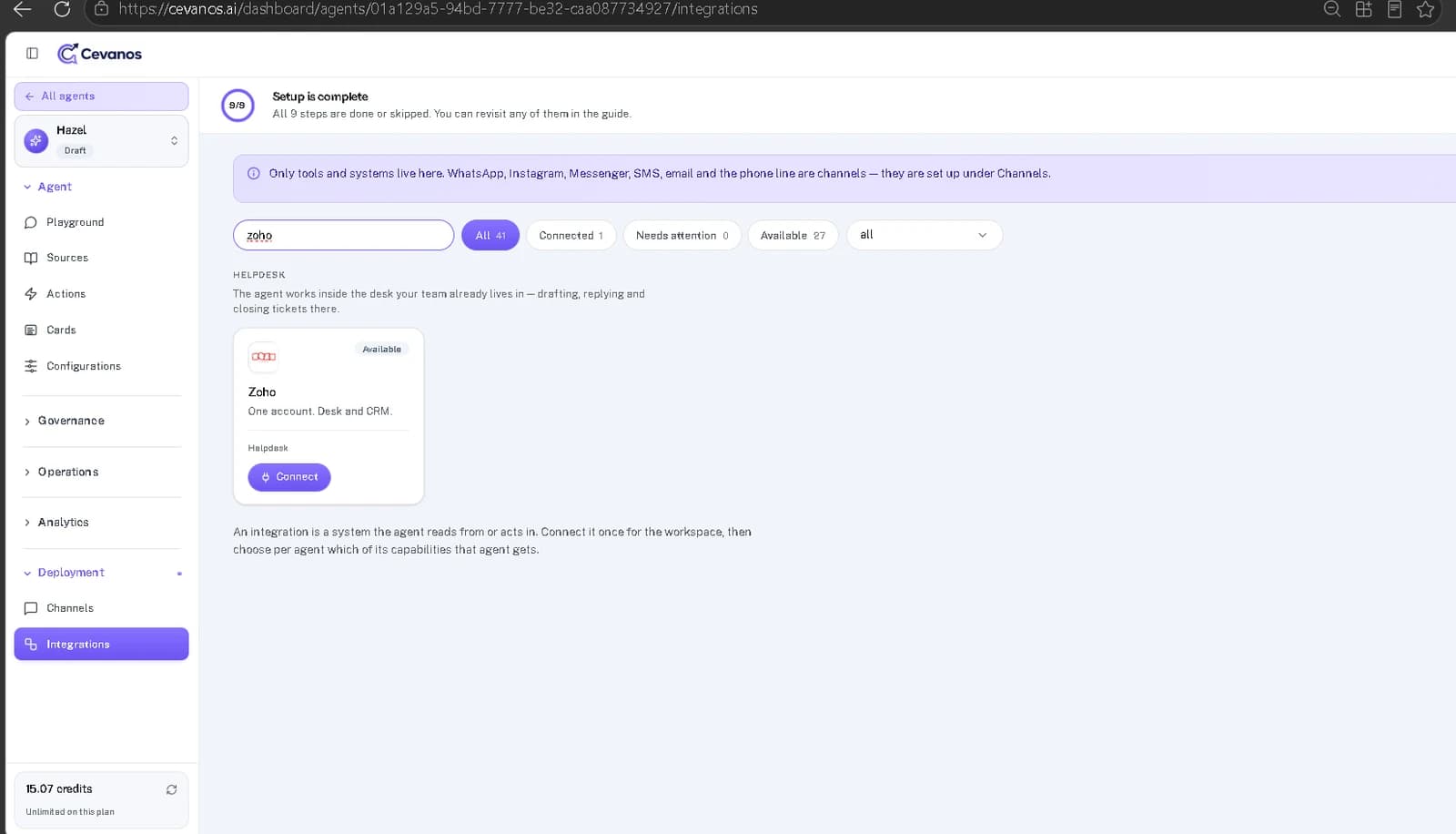
Result
You are ready to connect. Click Connect to start the next step.
Step 2
Connect Zoho Desk
2a. Choose Zoho Desk
- 1Click Connect on the Zoho card.
- 2Under Choose a product, select Zoho Desk. Each product is connected on its own.
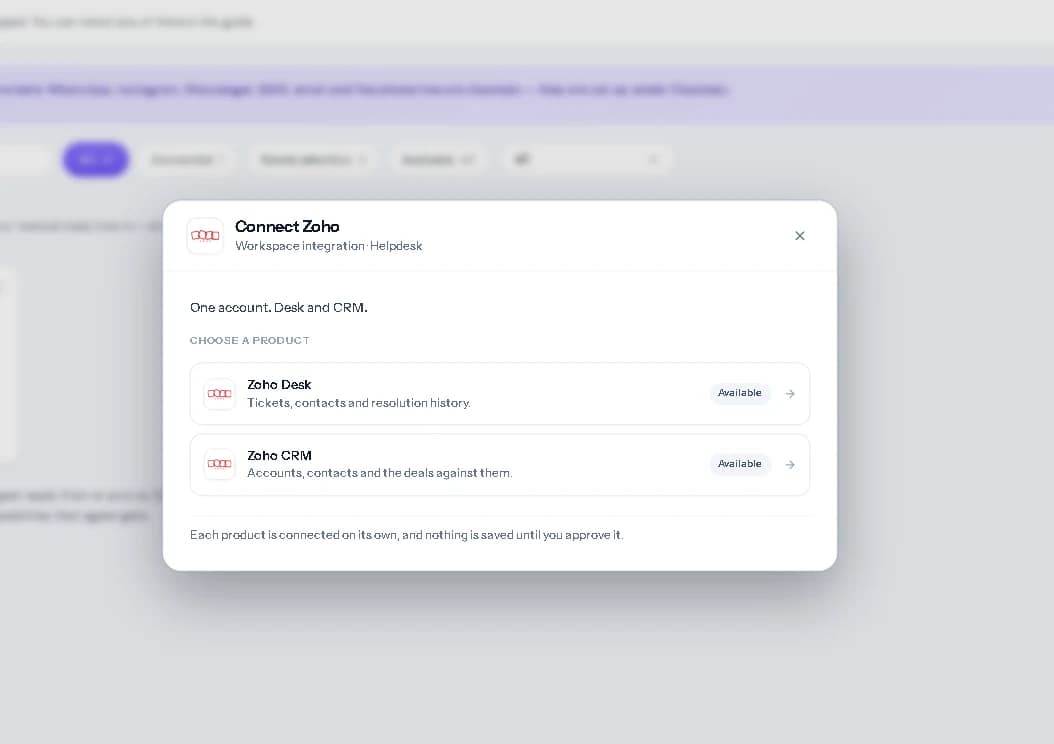
2b. Enter your account details
- 1Select the correct Data centre.
- 2Enter the Organisation and Department IDs you collected.
- 3Click Connect Zoho Desk.
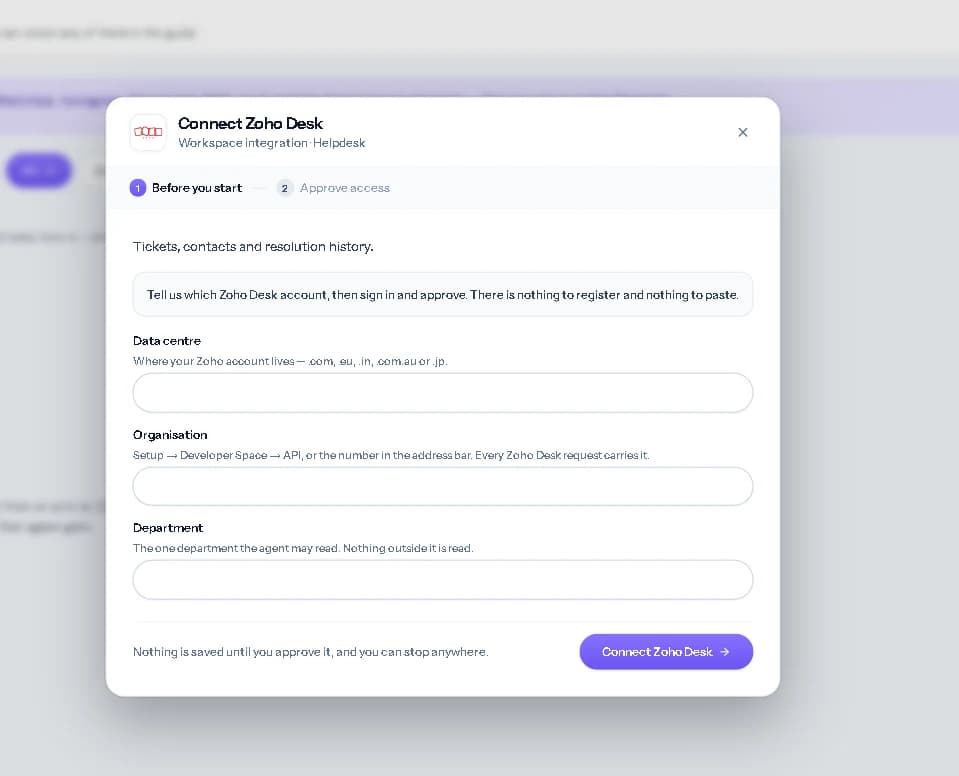
Nothing is saved yet
There is nothing to register and nothing to paste. Nothing is saved until you approve access, and you can stop anywhere.
2c. Approve access in Zoho
- 1Continue to Zoho, sign in if asked, and review the access request.
- 2Approve access for the correct Zoho Desk account.
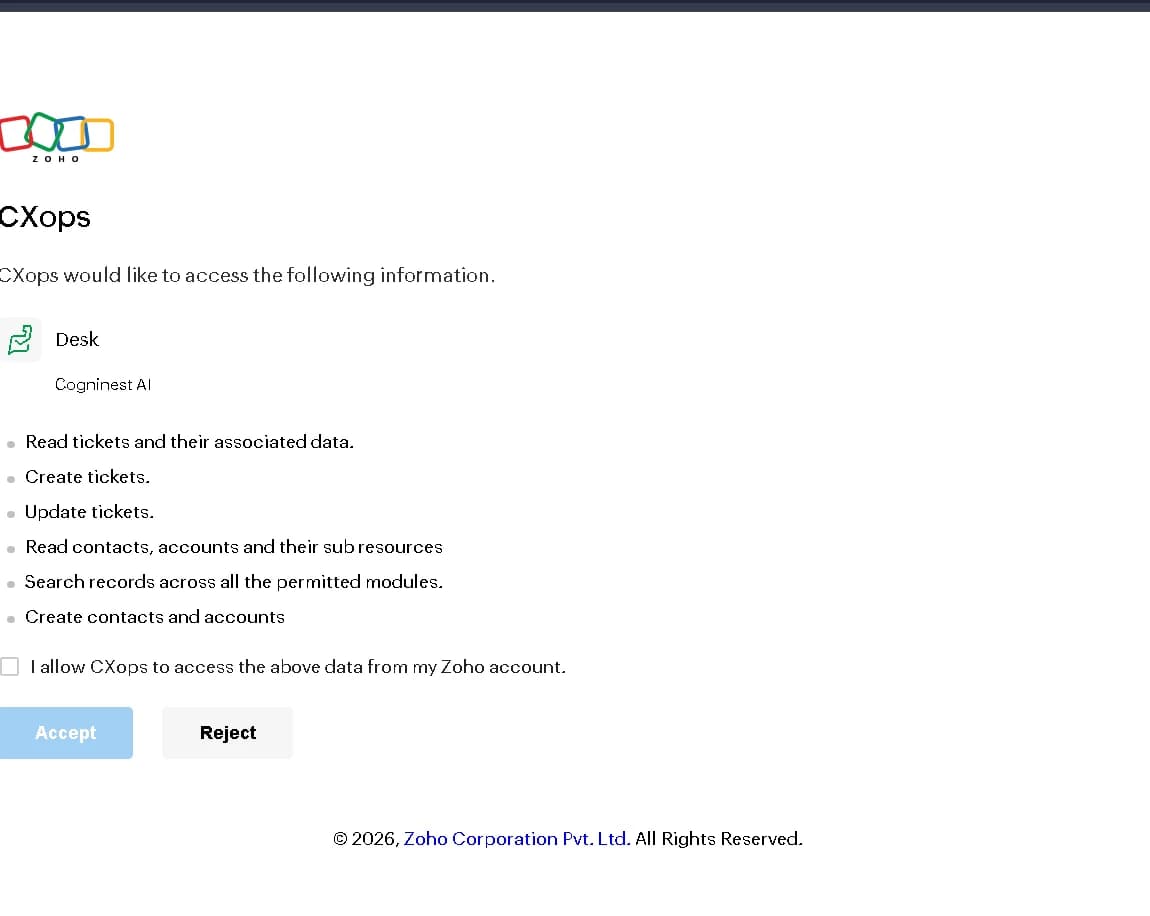
Result
Zoho sends you back to Cevanos, and Zoho Desk is connected for the workspace.
Step 3
Check the Zoho Desk page
- 1Open Agents → your agent → Deployment → Integrations.
- 2Select the connected Zoho card and confirm Zoho Desk is marked Connected.
- 3Read the connection details and status: Field mapping, Activity, Permissions granted and Health.
- 4Click Test connection to check whether access is still working.
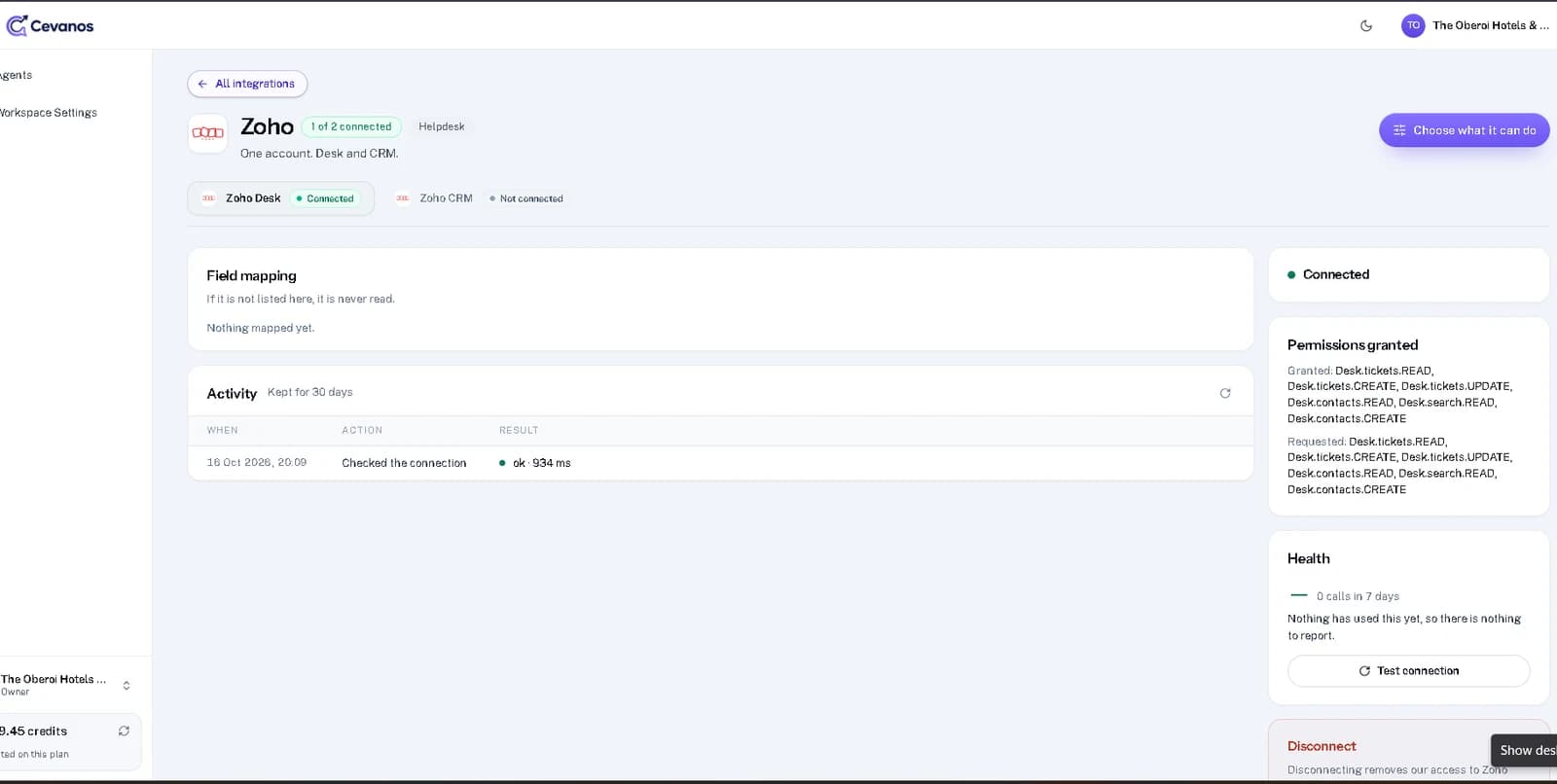
Result
You can confirm Zoho Desk is connected. Use Test connection at any time to check that access is still working.
Step 4
Set up Actions and approvals
- 1Go to Agents and select the agent you want to configure.
- 2Open the agent's Actions tab.
- 3Find the connected Zoho Desk card and open it.
- 4Turn on the actions the agent should be able to use. The switches save as you change them.
- 5Review the approval setting for any action that changes information in Zoho Desk.
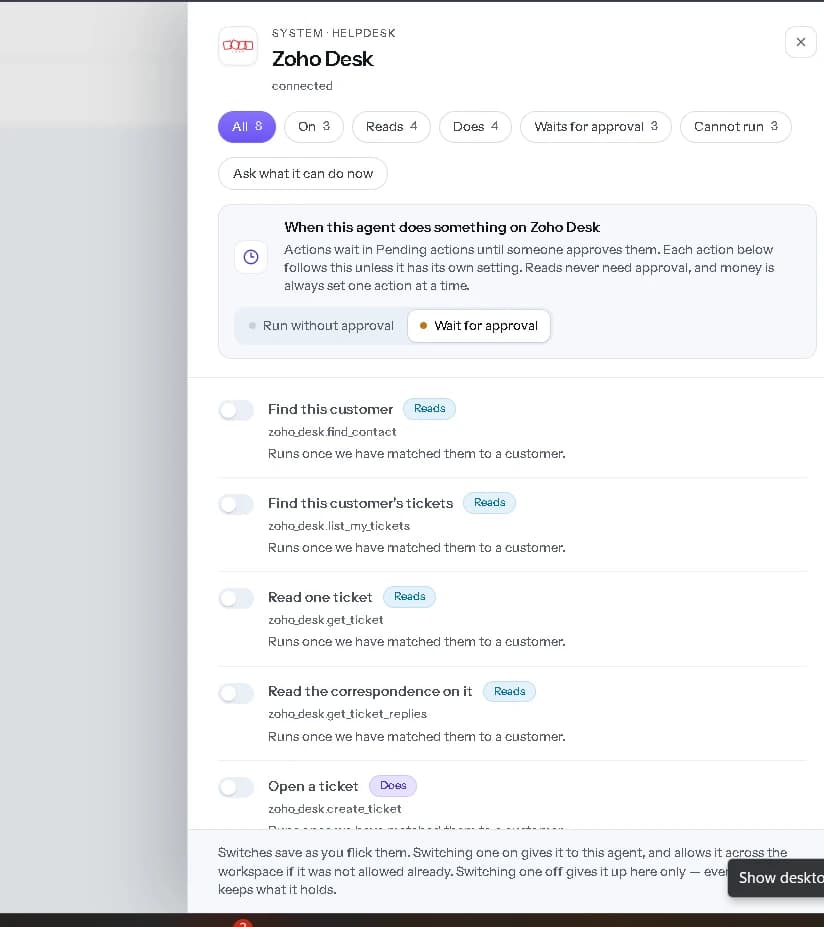
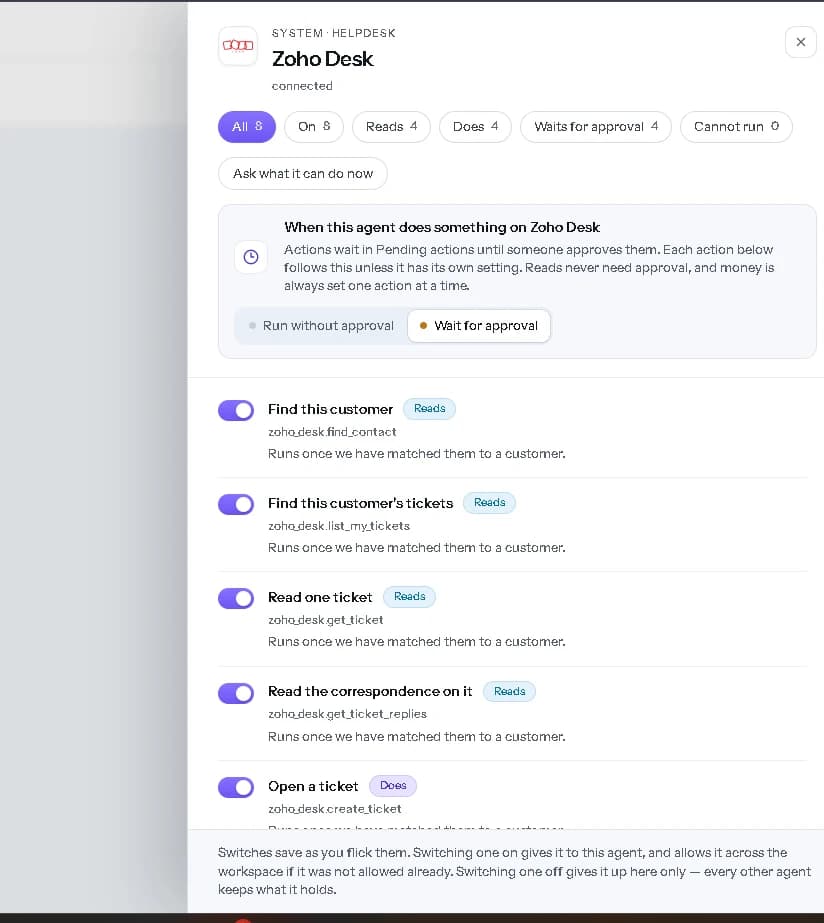
Per agent
A connected account does not automatically give every agent access to all actions. You decide which actions each agent can use.
Choose when an action needs approval
- Run without approval: when the agent has enough information and the request passes the applicable checks, it carries out the enabled action without waiting for a team member. This does not override an active Governance policy.
- Wait for approval: the agent prepares the action but does not carry it out yet. A team member with approval access approves or declines it. Waiting actions appear in Pending Actions; policy-controlled requests can also appear in Governance → Approval Queue.
- Set an individual action differently: the integration-level setting applies to its actions by default. On a specific change action, choose Same as the system, Run without approval or Wait for approval. Read actions do not need an approval setting.
Result
You know which Zoho Desk actions this agent can use, and which wait for approval.
Step 5
Try it
- 1Open the agent's Playground.
- 2Use a test customer who is present in Zoho Desk when testing personal information.
- 3Ask a question that uses a read action first.
- 4For a change action, check whether the request ran, needs customer confirmation, or is waiting for approval.
- 5Verify the outcome in Zoho Desk before treating the change as complete.
| Ask | What to check |
|---|---|
| “I reported an issue yesterday. Can you check my tickets?” | The agent finds the customer and lists their existing Zoho Desk tickets. |
| A request to change a ticket, such as closing it | The action must be switched on and allowed. Check whether it ran, needs customer confirmation, or is waiting for approval, then verify it in Zoho Desk. |
Result
Your agent reads Zoho Desk tickets for the matched customer, and changes them only within the approvals you set.
Step 6
Review pending approvals
If Governance is configured for this agent, a policy may require approval even when an action is switched on or set to run without approval.
- 1In the Playground, submit a request that uses an enabled action.
- 2If the result says Approval required, open Governance → Monitoring & Audits to review the decision and the policy that applied.
- 3Open Governance → Approval Queue, select Pending, and click Review beside the request.
- 4An authorized reviewer approves or rejects the proposed action. For an operation with several steps, the same approval can cover the steps shown.
- 5After approval, review the execution status and confirm the outcome in Zoho Desk.
Approved is not done
Approval is not the same as successful completion. Always check the result in Zoho Desk.
Result
You can see why a request waited, approve or reject it, and confirm what happened in Zoho Desk.
Reference
What Zoho Desk can do
Zoho Desk supplies 8 capabilities: 4 reads and 4 that change something. Each one is switched on separately, and all of them work inside the one department you connected.
8 capabilities · 4 reads · 4 that change something
- Matched customer
Find this customer
Look up the customer's Zoho Desk contact record.
zoho_desk.find_contact - Matched customer
Find this customer's tickets
List support tickets associated with the identified customer.
zoho_desk.list_my_tickets - Matched customer
Read one ticket
Open the details of one of the customer's tickets.
zoho_desk.get_ticket - Matched customer
Read the correspondence on it
Show customer-visible replies on a ticket, without private internal comments.
zoho_desk.get_ticket_replies
- Matched customer
Open a ticket
Create a support ticket in the selected department for the identified customer.
zoho_desk.create_ticket Reply on a ticket
Add a public, customer-visible comment to one of their tickets. This is not a separate outbound email reply.
Close a ticket
Mark one of the customer's tickets as closed.
Reopen a ticket
Reopen one of the customer's tickets.
When you connect, Cevanos asks Zoho for these permissions:
| Zoho asks you to allow | Permission |
|---|---|
| Read tickets and their associated data | Desk.tickets.READ |
| Create tickets | Desk.tickets.CREATE |
| Update tickets | Desk.tickets.UPDATE |
| Read contacts, accounts and their sub resources | Desk.contacts.READ |
| Search records across all the permitted modules | Desk.search.READ |
| Create contacts and accounts | Desk.contacts.CREATE |
Troubleshooting
| Problem | What to check |
|---|---|
| Zoho rejects the connection | Check the data centre and organisation ID, then repeat the Zoho authorization with an account that has the right access. |
| The connection cannot find any tickets | Check that the customer can be matched and that the department ID belongs to the intended department. A wrong department can make an otherwise valid ticket appear unavailable. |
| The agent can read but cannot reply or close a ticket | Switch on the matching action, check its approval status, and reconnect if Zoho needs additional authorization. |
| Newly enabled actions do not work on an account connected earlier | Reconnect Zoho Desk and approve the updated access request. |
| A request says Approval required | A Governance policy applies. Review it in Governance → Approval Queue. |
Optional
Disconnect Zoho Desk
- 1Open Agents → your agent → Deployment → Integrations.
- 2Select the connected Zoho Desk card.
- 3Click Disconnect to remove Cevanos's access to this account.
Your data stays
Disconnecting does not delete records in Zoho Desk.
Help from Zoho Desk
Ready to connect Zoho Desk?
Open your agent's Integrations and click Connect on the Zoho Desk card.