

Overview
Once Gorgias is connected to Cevanos, your AI agent can find the customer behind a conversation and look up their tickets. It can also open a ticket for your team when a person is needed, and reply on, close and reopen that customer's own tickets inside the helpdesk your team already uses.
Unlike a Custom Action, you do not define the actions yourself. Cevanos supplies a fixed set of 7: 3 reads and 4 that change something. You choose which of them your agent gets.
The journey at a glance
- 1Find GorgiasOpen Integrations, search for Gorgias and click Connect.
- 2Connect GorgiasType your subdomain, then approve access in Gorgias.
- 3Check the Gorgias pageConfirm the connection, the fields it reads, its permissions and its health.
- 4Choose what it can doTick Workspace and This agent, then Save capabilities.
- 5Set up Actions and approvalsCheck what can run and which actions wait for approval.
- 6Try itTest in the Playground with a customer question.
Before you start
Have these ready:
- Your Gorgias subdomain: the “acme” in acme.gorgias.com.
- A Gorgias user who may authorize apps for that account.
No API key
There is nothing to register and nothing to paste. Gorgias uses its own approve screen.
Step 1
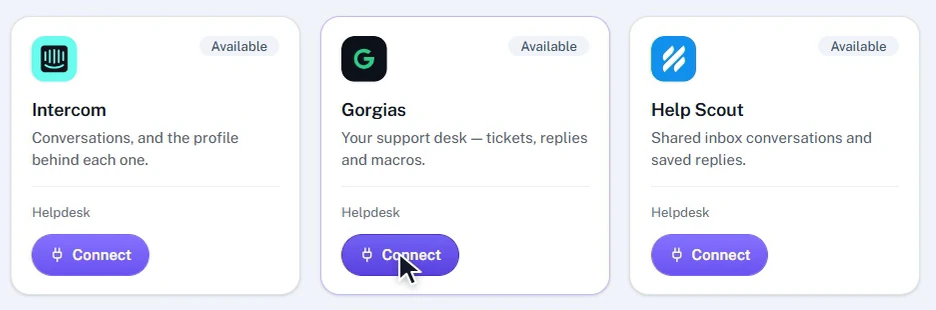
Find Gorgias
- 1In the Cevanos dashboard, open Integrations.
- 2Type Gorgias in the search box, or look under the Helpdesk section.
- 3Check the badge on the card. Available means it is not connected yet.
Starting in Gorgias instead
In Gorgias, open Settings, then App Store, find Cevanos and click Authorize. It opens the Cevanos Integrations page, where you carry on with the next step and type your subdomain.
Result
You are ready to connect. Click Connect to start the next step.
Step 2
Connect Gorgias
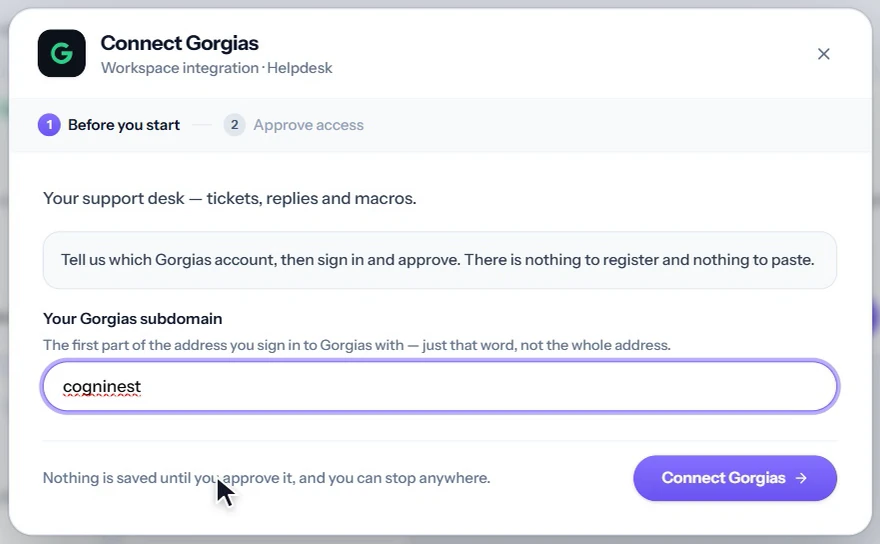
Connecting is done once for the whole workspace. The pop-up has two screens, Before you start and Approve access. The approval happens on Gorgias's own page.
2a. Before you start
- 1Click Connect on the Gorgias card. The Connect Gorgias pop-up opens.
- 2Your Gorgias subdomain: enter just the account name from your Gorgias address, so acme for acme.gorgias.com.
- 3Click Connect Gorgias.
Nothing is saved yet
Nothing is saved until you approve access, and you can stop anywhere.
2b. Approve access in Gorgias
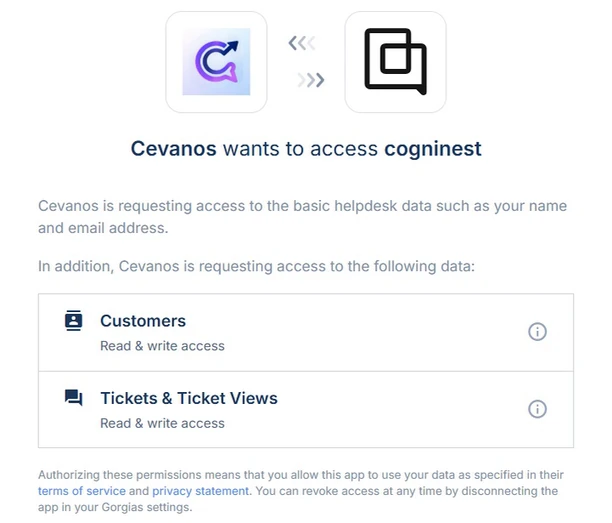
- 1Cevanos opens the approve page of your Gorgias account. Sign in if Gorgias asks you to.
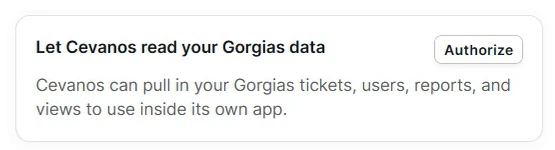
- 2Gorgias shows what Cevanos asks for: Customers and Tickets & Ticket Views, both with read and write access.
- 3Click Authorize to approve.
2c. Connected
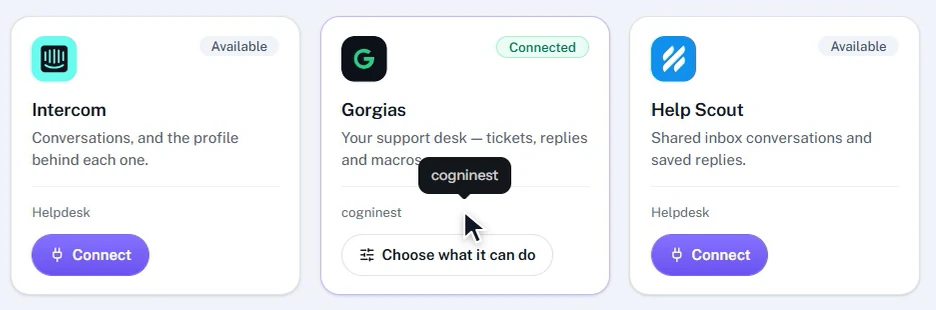
- After you approve, Gorgias sends you back to Cevanos.
- On the Integrations page, search for Gorgias. The badge now says Connected, the card shows your subdomain, and it offers Choose what it can do.
If it fails
Make sure the field holds just the account name, and that the Gorgias user who approved may authorize apps. Then try Connect Gorgias again.
Result
Gorgias is connected for the workspace, but nothing it can do is switched on yet.
Step 3
Check the Gorgias page
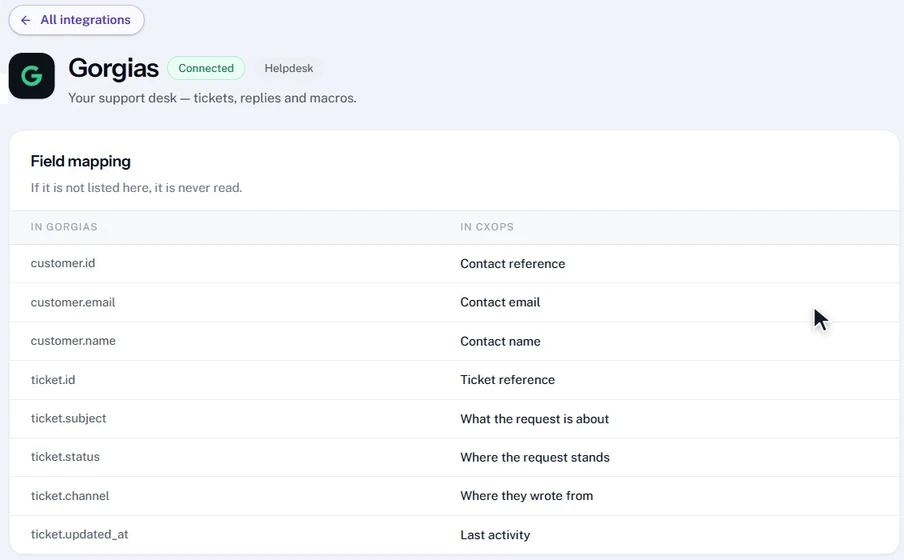
Click the Gorgias card on the Integrations page to open the Gorgias page.
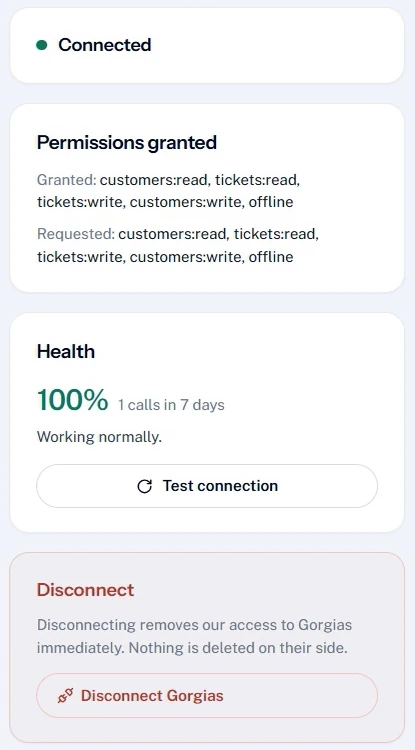
- 1Read the header: the status (Connected), the category (Helpdesk) and the Choose what it can do button.
- 2Field mapping lists every Gorgias field Cevanos may read, such as customer.email and ticket.channel. Anything not on the list is never read.
- 3Permissions granted compares what Cevanos asked Gorgias for with what Gorgias gave it. Both lines read “customers:read, tickets:read, tickets:write, customers:write, offline”.
- 4Health shows the calls in the last 7 days. Click Test connection to check that Cevanos can still reach Gorgias.
- 5Activity shows the calls the agent has made, kept for 30 days. Right after connecting, its only row is “Checked the connection”.
Result
You can confirm Gorgias is connected. Use Test connection at any time to check that Cevanos can still reach Gorgias.
Step 4
Choose what it can do
Click Choose what it can do on the Gorgias card or page. A pop-up lists the 7 capabilities. Each row has two checkboxes: Workspace and This agent. Only what is ticked in both columns actually runs.
Right after connecting, nothing is ticked under Workspace.
- 1Workspace: tick it for each capability Gorgias is allowed to supply at all. This applies to every agent in the workspace.
- 2This agent: tick it for each capability this agent should use.
- 3Tick or untick under Reads (look something up) and Does (change something).
- 4Click Save capabilities, or Cancel to leave without changes.
Or switch them on from Actions
On the Actions page in the next step, switching an action on gives it to the agent and also allows it for the workspace if it was not allowed already, so you can do both in one place.
Possible is not permitted
Turning something on makes it possible; a policy is what makes it permitted. Every Gorgias capability runs only once Cevanos has matched the person to a customer.
Result
The capabilities you ticked in both columns can now run.
Step 5
Set up Actions and approvals
The Actions page shows what the agent actually has, and lets you decide which changes need a person to approve them first.
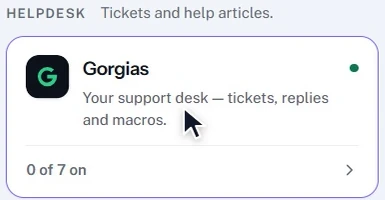
- 1In the left sidebar, click Actions. Under Helpdesk, find the Gorgias card. It shows how many of its 7 actions are on.
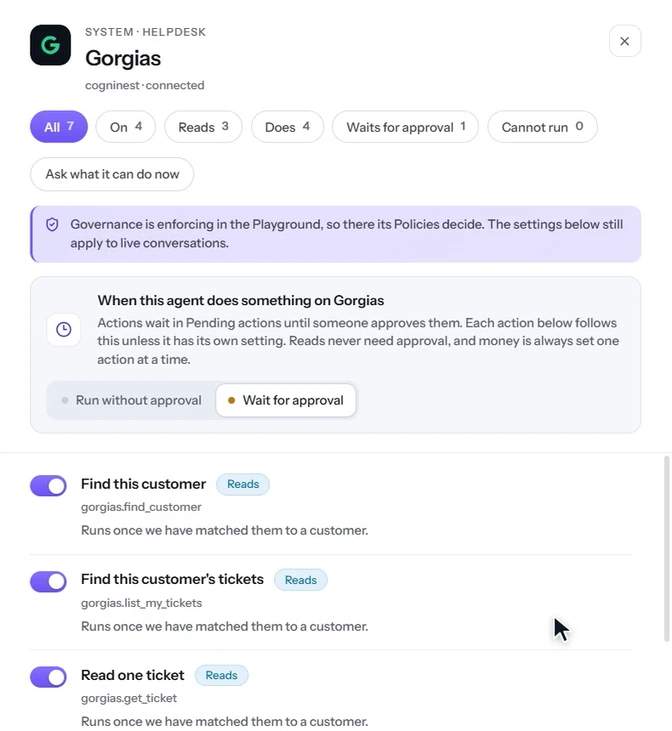
- 2Click the card. A panel slides in from the right.
- 3Use the filter chips (All, On, Reads, Does, Waits for approval, Cannot run) to narrow the list.
- 4In the box “When this agent does something on Gorgias”, choose Run without approval or Wait for approval for the Does actions.
- 5Each action has its own switch, and switches save as you flick them. Each Does action also has a dropdown, which defaults to “Waits for approval — Same as the system”.
“Stopped by your administrator”
An action with this red tag is not allowed for the workspace. Tick Workspace for it in Choose what it can do, or switch it off and on again here.
Result
You know which Gorgias actions can run, which wait for approval, and which are stopped.
Step 6
Try it
- 1Open the Playground for your agent.
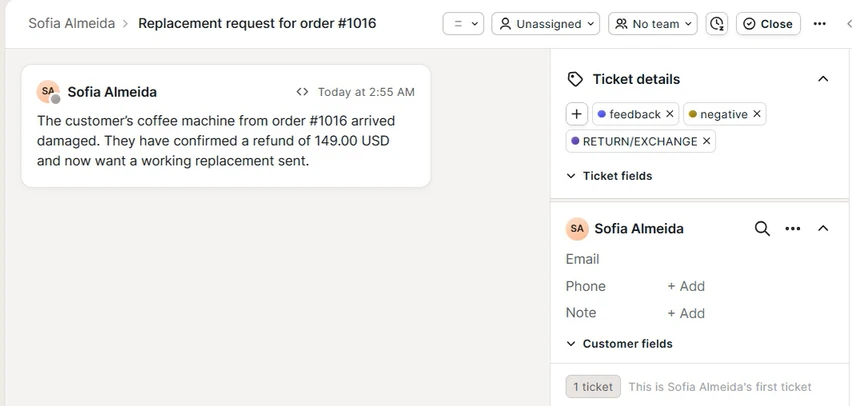
- 2Make sure the conversation has a matched customer whose email is on a Gorgias customer. The ticket actions need one.
- 3Ask something that should trigger a Gorgias action, such as the examples below.
- 4For an action that changes something, check the Pending actions list if you chose Wait for approval.
- 5Back on the Gorgias page, the Activity table shows each call and its result.
| Ask | What to check |
|---|---|
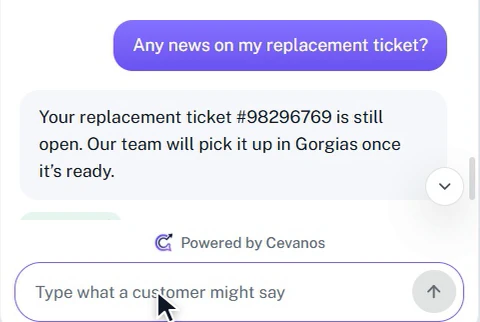
| “Any news on my ticket?” | The agent looks up the matched customer's tickets and tells them where it stands, and the call appears in Activity. |
| “My order arrived damaged. Can someone help?” | If you chose Wait for approval, opening the ticket appears in Pending actions first. Once it runs, the ticket is in Gorgias with the situation written up. |
| “All sorted, you can close it.” | The agent closes the ticket, and Gorgias shows it as Closed. |
Result
Your agent works with Gorgias tickets for the customer it has matched, within the approvals you set.
Reference
What Gorgias can do
Gorgias supplies 7 capabilities: 3 reads and 4 that change something. Every one of them needs a matched customer.
7 capabilities · 3 reads · 4 that change something
- Matched customer
Find this customer
gorgias.find_customer - Matched customer
Find this customer's tickets
gorgias.list_my_tickets - Matched customer
Read one ticket
gorgias.get_ticket
- Matched customer
Open a ticket
gorgias.create_ticket - Matched customer
Reply on a ticket
gorgias.reply_to_ticket - Matched customer
Close a ticket
gorgias.close_ticket - Matched customer
Reopen a ticket
gorgias.reopen_ticket
The Gorgias page's Field mapping names every field Cevanos reads, four about the customer and four about each ticket:
| In Gorgias | In Cevanos |
|---|---|
| customer.id | Contact reference |
| customer.email | Contact email |
| customer.name | Contact name |
| ticket.channel | Where they wrote from |
| ticket.id | Ticket reference |
| ticket.status | Where the request stands |
| ticket.subject | What the request is about |
| ticket.updated_at | Last activity |
What Cevanos asks Gorgias for
| Permission | On Gorgias's approve screen | What it is for |
|---|---|---|
| customers:read | Customers, read | Find the customer by email. |
| customers:write | Customers, write | Open a ticket for a customer. If the customer is new to Gorgias, Gorgias creates them. |
| tickets:read | Tickets & Ticket Views, read | Look up and read the customer's own tickets. |
| tickets:write | Tickets & Ticket Views, write | Reply on, close and reopen the customer's own tickets. |
| offline | Not shown | Lets the connection renew itself each day instead of asking you again. |
Gorgias tickets: what to expect from each action
In Gorgias a ticket is either Open or Closed, and a snoozed ticket counts as closed until its snooze ends (Gorgias: handle incoming tickets).
| Cevanos action | What to know about Gorgias |
|---|---|
| Read one ticket | Gives the ticket's subject, status, channel and dates, not the messages on it. The agent can tell a customer where a ticket stands, not what your team wrote. |
| Close a ticket | Sets the ticket to Closed. Closed is not final in Gorgias, so the ticket can be reopened later. |
| Reopen a ticket | Sets a closed ticket back to Open. |
| Reply on a ticket | Goes out by email from the support address the customer wrote to, so it works only on tickets that came in by email. |
| Open a ticket | Files a new Gorgias ticket for the matched customer with the situation written up, so your team starts with the whole story. |
Gorgias's request limits
Gorgias caps the API calls each app may make. An OAuth app like Cevanos gets 80 requests in a 20-second window, and Enterprise accounts use a 10-second window (Gorgias: rate limits). Over the cap, Gorgias answers “429 Too Many Requests” until the window refills.
Check the current figures
The figures are Gorgias's own, as of 27 October 2026. Gorgias may revise them, and its rate limits page is the one to trust.
Good to know
Before Cevanos reads or changes a ticket, it checks that the ticket belongs to the customer in the conversation.
Troubleshooting
| Problem | What to check |
|---|---|
| Connecting does not finish | Make sure the subdomain field holds just the account name (acme for acme.gorgias.com), and that the Gorgias user who approved may authorize apps. Then try Connect Gorgias again. |
| Actions say “Stopped by your administrator” | The action is not allowed for the workspace. Open Choose what it can do, tick Workspace for it and click Save capabilities, or switch it off and on again on the Actions page. |
| A ticket action does not run | Gorgias actions run only once Cevanos has matched the person to a customer. Make sure the conversation has a matched customer whose email is on a Gorgias customer. |
| The agent cannot reply on a ticket | Replies go out by email from the address the customer wrote to, so they work only on tickets that came in by email. On a chat or form ticket, the agent can open a ticket for your team instead. |
| The agent does not know what your team wrote on a ticket | That is by design: Cevanos reads a ticket's status and dates, not the messages on it. |
| Gorgias calls get slow or fail when you are busy | Gorgias caps API calls per window; see Gorgias's request limits above. The Health and Activity sections of the Gorgias page show any calls that failed. |
| You are not sure Cevanos can still reach Gorgias | Click Test connection on the Gorgias page. |
Optional
Disconnect Gorgias
- 1Open the Gorgias page and click Disconnect Gorgias in the red Disconnect box.
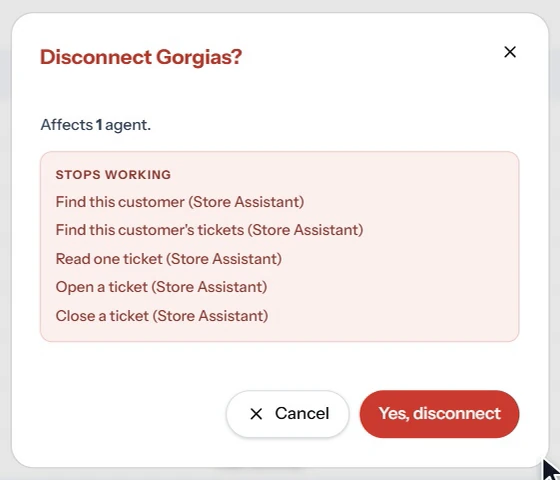
- 2A pop-up asks “Disconnect Gorgias?”. It says how many agents are affected and lists the actions that stop working.
- 3Click Yes, disconnect to continue, or Cancel to keep it connected.
- 4The Gorgias card goes back to Available with a Connect button. Repeat the Connect step to connect again.
Your data stays
Disconnecting revokes Cevanos's access in Gorgias immediately. Nothing is deleted in Gorgias.
Removing Cevanos in Gorgias instead
If you remove the app in Gorgias's settings, Cevanos is not told straight away. Its card keeps saying Connected until the connection next renews, within a day.
Help from Gorgias
Ready to connect Gorgias?
Open your agent's Integrations and click Connect on the Gorgias card.